If your team is stuck in spreadsheets and copy pasted data, you are not alone.
Most small businesses hit the same wall. The tools you can buy off the shelf almost fit, but not quite. A web app is overkill. You really need custom desktop tools that run reliably on Mac and Windows, without hiring a full dev team.
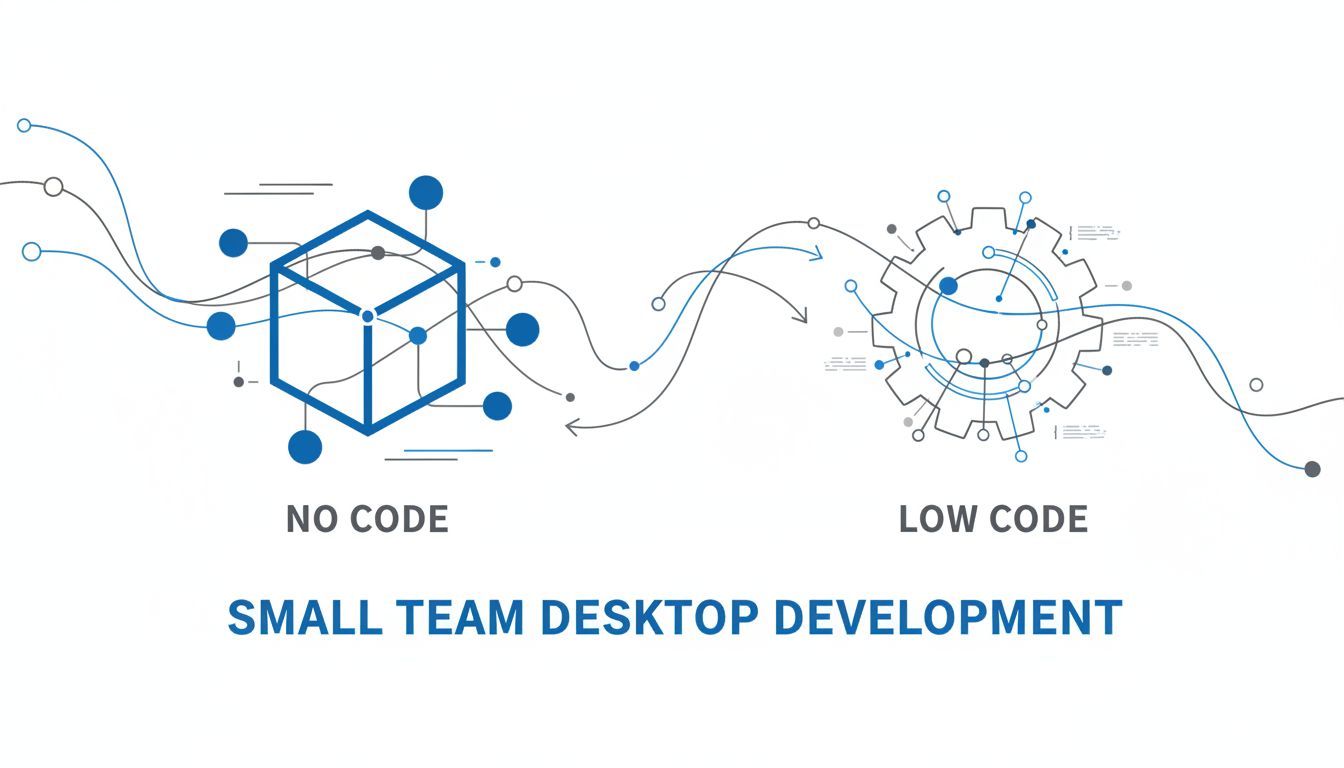
So you start comparing no code vs low code desktop options. Everything sounds promising. Everything also sounds the same.
Let’s cut through that.
This is about how your team actually works, how risky your data is, and how much control you want over your future, not just how pretty a builder looks in a demo.
What’s really different between no code and low code on desktop?
Both no code and low code promise the same thing. "Build custom apps faster, without a big engineering team."
The difference is how much of the real complexity they hide from you, and when that becomes a problem.
No code tools try to give you a complete visual environment. You click and drag blocks, configure settings, and publish an app. In theory, no code means "no programming required at all."
Low code tools assume someone on your team can handle a bit of logic. You still get visual builders and templates, but you can drop into scripts or configuration to solve harder problems.
On the desktop, that tradeoff shows up very clearly. It affects what you can actually ship to Mac and Windows, how easy it is to maintain, and who on your team can realistically own it.
How no code builders work for Mac and Windows tools
Most "desktop" no code builders are really wrappers around web tech.
You design screens in a browser. You connect to your data, set up automations, and then the platform packages the app as a Mac and Windows executable. Underneath, it is still running like a mini website.
That is not automatically bad. It can be great for:
- Internal tools that mostly show and edit data
- Simple dashboards that read from a database or Google Sheets
- Workflow helpers that combine a few systems into one view
Imagine you run a 15 person logistics team. You build a no code desktop app that shows open orders, allows simple status updates, and pulls tracking info from a web API. Everyone gets a desktop icon, double click, done. No browser tabs jungle, no lost URLs.
That is a great fit for no code.
Where it struggles is when you move closer to "real" desktop behavior.
Things like:
- Deep OS integration, for example system tray, file system sync, custom notifications
- Heavy offline support with complex sync logic
- High performance requirements, for example video, large data sets, or complex local processing
You might find workarounds through plugins or add ons. But at some point the platform says, "We don’t support that." And since you have no way to drop into code, you are stuck waiting on their roadmap.
[!NOTE] A pure no code desktop app is essentially a powerful prototype that might serve you for years, as long as your needs stay inside the visual builder’s comfort zone.
Where low code starts to look more like traditional dev
Low code starts with the same promise. Visual UI builder, data connectors, templates.
The difference shows up when you hit a requirement that does not fit the template. With low code, there is usually a place to write logic.
That might be:
- JavaScript or Python snippets
- Custom modules or plugins
- Configurable build scripts for Mac and Windows installers
Imagine your finance team wants a desktop tool that pulls data from an ERP, merges it with CSV exports from banks, runs custom reconciliation logic, then saves audit ready reports.
The first 60 percent is easy in a no code style builder. Connect sources, map fields, build screens.
The last 40 percent, where your specific business rules live, is precisely where low code shines. You keep the speed of a visual builder, but a power user or part time developer can write those reconciliation rules in code.
Here is the honest part.
Once your low code project grows, it starts to feel more like a traditional development project, only with a faster UI layer.
You will see:
- Version control questions. Who changed what and when.
- Dependency questions. What happens if we update this library.
- Environments. How do we test safely before shipping to everyone’s desktop.
That is not a bad thing. It just means if you choose low code, you should plan for at least some engineering discipline. Otherwise, it can turn into a brittle mess faster than a spreadsheet shared across six people.
How to know which approach fits your small business
The right choice is not about which marketing page looks nicer. It is about your constraints.
For small internal desktop tools, the real question is: "Where do we sit on the spectrum from 'prototype in a week' to 'critical system we will depend on for years'?"
Key questions to ask about your workflows and team skills
Walk through these questions with your team. You will get clarity quickly.
How often will workflows change in the next 12 to 24 months? If you are still discovering what works, no code speed is hard to beat. If workflows are already stable, low code can give you more control long term.
Who will maintain these tools? If you have no one with coding experience, truly none, then heavy low code might be risky. You will either stall or end up hiring outside help. If you have at least one technical person, even if they are not a full time engineer, low code becomes much more attractive.
How sensitive is the data and how strict are your compliance requirements? HR data, financial data, patient data, that is a different world from "internal reporting for marketing." Simple no code tools might not give you the deployment or security control you need.
What happens if this app is down for a day? Mild annoyance is one thing. Plant shutdown or missed regulatory deadlines is another. For critical tools, the ability to debug and extend through low code becomes valuable insurance.
How "desktop native" does this really need to be? If the desktop requirement is mostly about convenience and trust, you can probably live with a more web styled no code app. If you need deeper OS integration or serious offline use, low code or full code becomes important.
A simple decision matrix: speed, control, budget, and risk
Here is a quick way to frame no code vs low code desktop for small teams.
| Dimension | No code desktop | Low code desktop |
|---|---|---|
| Speed to first version | Very fast for simple workflows. Days to weeks. | Fast if you have some technical skill. Weeks to a few months. |
| Control & flexibility | Limited to what the platform exposes. Workarounds only through settings. | Much higher. You can extend and customize with code where needed. |
| Upfront budget | Lower initial cost, especially if you stay small. | Often higher, due to setup and technical time. |
| Long term cost | Can rise sharply with users and advanced features. Vendor lock in risk. | More work to set up, but easier to tune costs over time if chosen well. |
| Risk if requirements grow | Risk of hitting hard platform limits and needing a full rebuild. | Risk of complexity, but fewer hard ceilings. |
| Who it fits | Non technical teams, lightweight internal tools, rapid experiments. | Teams with at least some technical capacity, or partners who can help. |
If your top priority is "we must have something useful on people’s desktops this month," no code often wins the first round.
If your top priorities are "this will run critical workflows" or "we know we will be extending this for years," low code usually wins the longer game.
The hidden costs most teams miss with no code and low code
Pricing pages are optimistic fiction. The real costs show up later, when you are already committed.
Licensing, vendor lock in, and scaling beyond a quick prototype
The first prototype is cheap. Up to 5 users. Limited features. Perfect.
Then your sales team loves it. Ops wants access. Leadership wants a dashboard.
Your cost curve changes.
Common traps:
- Per user pricing that sounds harmless at 10 people but painful at 60
- Feature gated tiers where the one thing you actually need is locked in a higher plan
- Data storage fees once you store more than a token amount inside their platform
Vendor lock in is the bigger strategic issue.
With no code tools, your application logic lives mostly inside their black box. You might be able to export data, but not the workflow itself. If you need to leave, you are usually rebuilding from scratch.
Low code tools can be better if they use more standard technologies, or at least make it realistic to export core components and logic.
[!TIP] When evaluating platforms, ask "If we leave you in 3 years, what do we get to keep that is actually useful? Data is the minimum, not the full answer."
Scaling beyond a prototype is where many small businesses feel cornered. They love the tool. They hate the pricing and limitations. Moving off feels impossibly expensive. So they stay, and resentment builds.
It is more honest to assume your successful internal apps will grow. Choose tooling that you would not regret at 5 times your current size.
Maintenance, security, and IT involvement over the long term
No code pitches "anyone can build." The part they quietly skip is "someone has to maintain."
Updates to MacOS and Windows. Security patches. API changes from the systems you integrate.
Even with no code, someone is responsible for:
- Updating connectors when external systems change
- Reviewing permissions as staff join and leave
- Checking that desktop packages still install and run on new OS versions
On low code platforms, maintenance is a bit more explicit. You will treat these apps as software, not magic. That usually leads to better habits.
Security is similar.
No code does not remove the need to think clearly about:
- Who can see which data in the app
- How you handle credentials and API keys
- Whether the vendor meets your compliance requirements
If you already have an IT or security function, they will likely be more comfortable with low code platforms that expose logs, deployment pipelines, and configuration.
If you do not, you still need to choose tools that make "safe by default" easy. The right platform lowers the risk of one well meaning power user accidentally giving everyone access to sensitive data.
What a good desktop stack looks like for Mac and Windows
You do not need a perfect, future proof architecture. You do need something coherent.
For most small teams, a "good enough" desktop stack is one that:
- Plays nicely with both Mac and Windows
- Keeps your data in a system you control, not locked inside a tool
- Lets you start simple, but does not trap you there
Typical tool combinations that work well for small teams
Here are patterns that tend to work in practice.
Pattern 1. No code front, solid backend
- Use a no code desktop builder for UI and light workflows
- Keep your core data in a proper database or a service like Airtable or a central SQL instance
- Connect through APIs, not by directly storing everything inside the no code tool
This works well if your internal tools are "views and updates on existing systems." You get quick wins without committing your whole data model to a single vendor.
Pattern 2. Low code core, templated apps
- Use a low code platform as your core environment
- Build a few standard modules (auth, logging, shared UI components) properly
- Let power users configure their own variations on top of those modules
This is closer to how a lean product team works. It takes more initial discipline, but you can ship many tailored desktop tools without reinventing every wheel.
Pattern 3. Hybrid. No code for discovery, low code for scale
A pattern we see a lot at Vibingbase when teams come to us:
- They built an internal tool in pure no code to learn what they really need
- The tool hit limits on performance or integration
- We move the stable parts to a low code or more traditional stack, keeping the "sandbox" no code area for experimentation
That hybrid approach can be powerful. Use no code as the playground, not the permanent home.
Red flags that your current path will paint you into a corner
A few warning signs are worth calling out.
- Your only way to solve new requirements is to stack more and more visual "conditions" and "flows," and no one fully understands them anymore.
- Your vendor’s pricing makes you hesitate every time you consider adding users or features.
- You cannot answer the question, "What breaks if this one power user leaves the company?"
- Your app behaves differently on Mac and Windows, and your platform hand waves those issues.
- You have no clear way to test changes before shipping them to everyone’s desktops.
If two or more of these feel familiar, you are probably in a no code comfort zone that is turning into a trap.
That is usually the moment to reassess and either tighten up your current setup or deliberately introduce some low code capability.
Putting it into action: your next 30 days
Thinking about platforms is abstract. The way to get clarity is to ship something small, on purpose, with guardrails.
Run a low risk pilot project with clear success criteria
Pick a process that is:
- Annoying enough that people care
- Contained enough that you will not break the company if it fails
- Representative enough that it touches your typical data and users
Examples:
- A scheduling dashboard for field technicians
- An internal order tracking desktop app for your ops team
- A simple "single pane of glass" app that shows CRM, support, and billing data for each customer
For the pilot:
- Decide ahead of time how long you are willing to invest. For example, "We will spend 30 days and 40 hours of internal time."
- Write down what success looks like. Time saved per week. Fewer mistakes. Less manual copy paste.
- Choose one no code or low code desktop capable tool. Do not mix three platforms on day one.
- Build the simplest version of the app that could deliver 70 percent of the value. No extra features.
- Put it in front of real users, on real Mac and Windows machines, and watch where it creaks.
At the end of those 30 days, you will know:
- Whether your team can realistically own a no code or low code solution
- Whether the platform felt "too simple" or "too restrictive"
- What kind of stack you probably need for the next app
How to compare vendors and avoid overbuying features
When you look at platforms, ignore the giant feature grids at first. Focus on five questions.
What does deployment to Mac and Windows actually look like? Is it a clean installer. Do they wrap everything in a clunky browser shell. How do updates roll out.
Where does your data really live? Can you keep data in your own database or trusted services. Can you get it out in a usable way.
What happens when we outgrow the basics? Ask for specific examples where a customer hit a limit and how they handled it. This is where low code platforms often show their value.
How do we debug when something breaks for a user? Look for logging, error reporting, and some way to inspect what happened on that user’s desktop.
What is the smallest plan that actually matches our realistic 1 to 2 year use? Not the starter plan that looks cheap, the tier you would hit if the app succeeds.
[!IMPORTANT] Your goal is not to find the most powerful platform. It is to find the smallest platform that gives you enough headroom for your next two or three apps without boxing you in.
At Vibingbase, when we help teams choose, we almost always prototype one real workflow before committing to anything. Paper evaluations always miss the friction you only feel when you try to build.
You can do the same.
Pick one process. Choose one platform. Build one small, real desktop app. Learn from the experience.
From there, decisions about no code vs low code desktop stop being theoretical. They become grounded in how your people work, with your data, on the actual Macs and Windows machines you run every day.
Your natural next step: Identify one internal workflow that drives your team crazy, and write one sentence that describes what a "good enough" desktop tool would change about it. Use that as the seed for your pilot.